
Follow this guide to listen to your otome drama CDs with timed English subtitles!
-
♥
Media File: Any audio track (
.mp3,.wav,.m4a) or video (.mp4,.mkv). -
♥
Translation File: Download the matching subtitle (
.srt) or lyric (.lrc) file from my page or elsewhere.
.vtt file, convert it to .srt or .lrc first using a free online converter.
| ♥ |
- ♥LRC (Lyric files): Synced lyrics designed specifically for music players.
- ♥SRT (Subtitle files): Universal subtitle files supported across general media players.
-
✕VLC Media Player: Won’t show
.srtsubtitles on audio tracks unless the audio is converted into a video file. -
✕Windows Media Player: Doesn't support
.srtor.lrcfiles at all. - ✕MusicBee: I used this for a bit, but the lyrics end up noticeable out of sync as you get further into longer tracks.
| ♥ |
This guide covers a few recommended players depending on your chosen file type and platform. Choose one below to get started:
| ♥ | PC Options | ♥ |
Foobar2000 (LRC)
Foobar2000 is a free, lightweight audio player that can play almost any music format. It doesn't show lyrics by default, but you can easily add synced lyrics with the OpenLyrics plugin.
| Audio | MP3 ✅ | WAV ✅ | M4A ✅ |
| Video | MP4 ❌ | MKV ❌ |
| Subtitles / Lyrics | SRT ❌ | LRC ✅ |
Downloading Foobar2000 & OpenLyrics

Select the 64-bit installer.
To get synchronised lyrics to appear, you need to download the OpenLyrics plugin, which is also on the foobar2000 website.

Select standard installation.

You can also pick a colour scheme in the Colours section.
Installing the OpenLyrics Plugin
- Click on File > Preferences (Ctrl + P)
- Click on the Components tab in the left sidebar
- Click the Install... button on the bottom right
- Locate the OpenLyrics file you downloaded (usually named something like foo_openlyrics-v1.10)
- Click Apply on the bottom right
- Foobar2000 will then ask to restart; click OK.

Setting up your Audio File & Lyrics


Configuring OpenLyrics to read your LRC File

This is what the Local Files tab looks like by default.


Example setup

Synchronised lyrics working in Foobar2000!
Customising Lyrics in Foobar2000 (Optional)

Here you can customise your font, font size, main text colour, highlighted text colour, among other options.

My font settings.

The end result!
For any more questions regarding Foobar2000, you can visit their help page which contains links to their FAQs, forums & wiki page ↓
| ♥ |
MPV Player (SRT)

MPV Player is a free, open source, and cross-platform media player that supports a wide variety of media file formats and subtitle types.
| Audio | MP3 ✅ | WAV ✅ | M4A ✅ |
| Video | MP4 ✅ | MKV ✅ |
| Subtitles / Lyrics | SRT ✅ | LRC ✅ |
Downloading MPV Player

Select Windows builds by zhongfly (git).

Select mpv-x86_64-20260912-git-14f2d48cbc.7z for 64 bit system.
Setting up MPV Player

Example setup

Timed subtitles working for audio files in MPV Player!
Customising Subtitles in MPV Player


The end result!
For any more questions regarding MPV Player, you can visit their reference manual page which contains links to their FAQs, forums & wiki page ↓
| ♥ |
| ♥ | Mobile Options | ♥ |
Setting up subtitles on your phone is more straightforward. For the best mobile experience, I recommend using an audio track paired with an .lrc lyric file.
- Place your audio file and your
.lrc(or.srt) file together in the exact same folder on your phone. - Make sure both files have matching filenames (e.g.,
track.mp3andtrack.lrc).
Here are some recommended apps for both iOS and Android:
| ♥ | Android | ♥ |
Musicolet (LRC)


Retro Music Player (LRC)


MPV Player (SRT)


| ♥ | iOS | ♥ |
Evermusic (LRC)
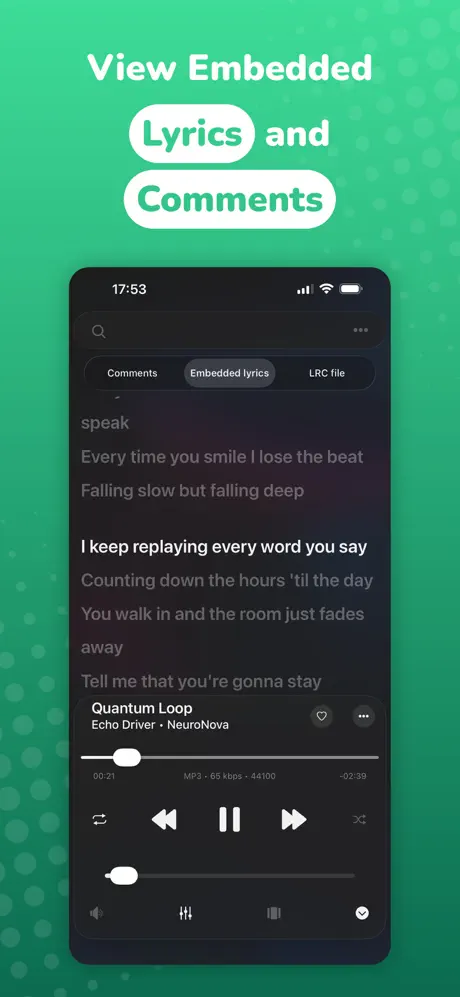
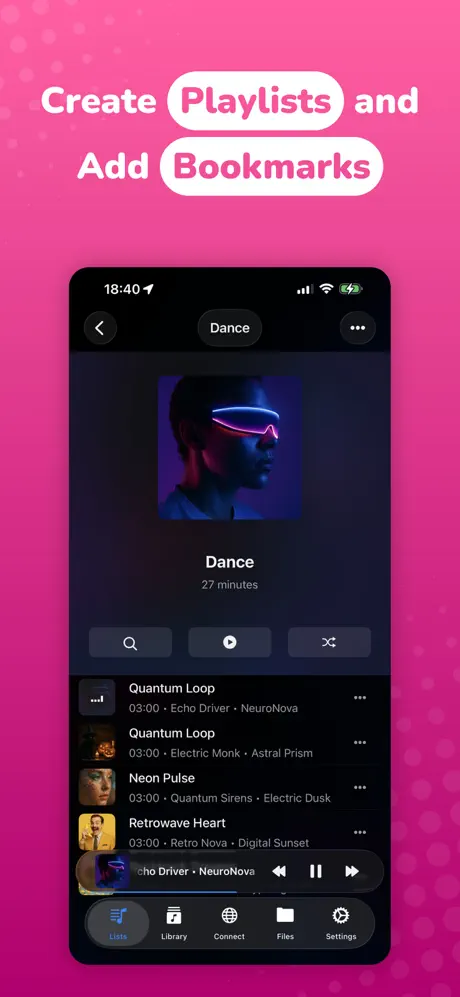
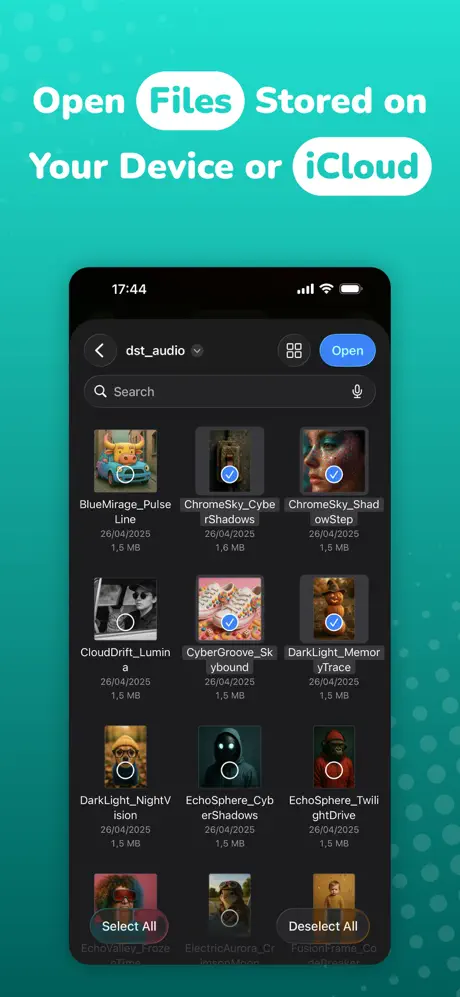

Doppler (LRC)


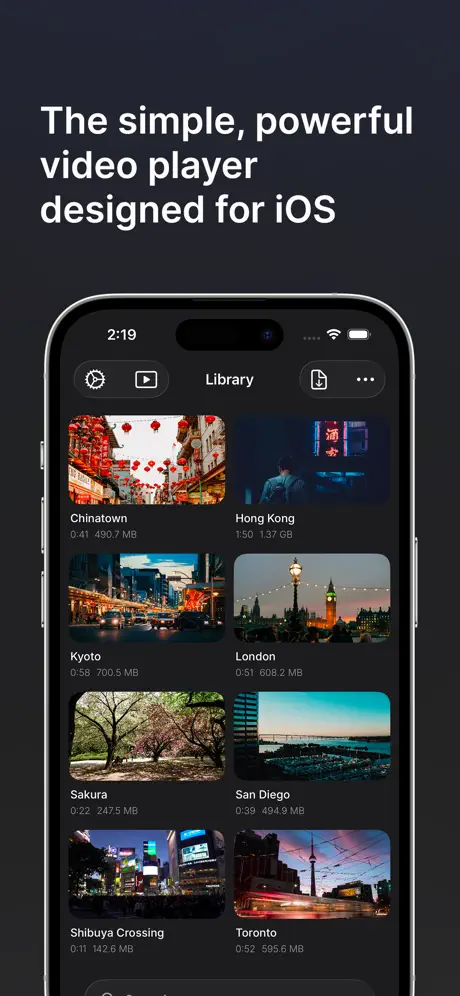
Outplayer (SRT)

Thank you for reading! ♡
I hope that helped! If there's anything else you'd like me to translate, feel free to leave a request in the comments, on Ko-fi, or on Twitter.

No comments:
Post a Comment